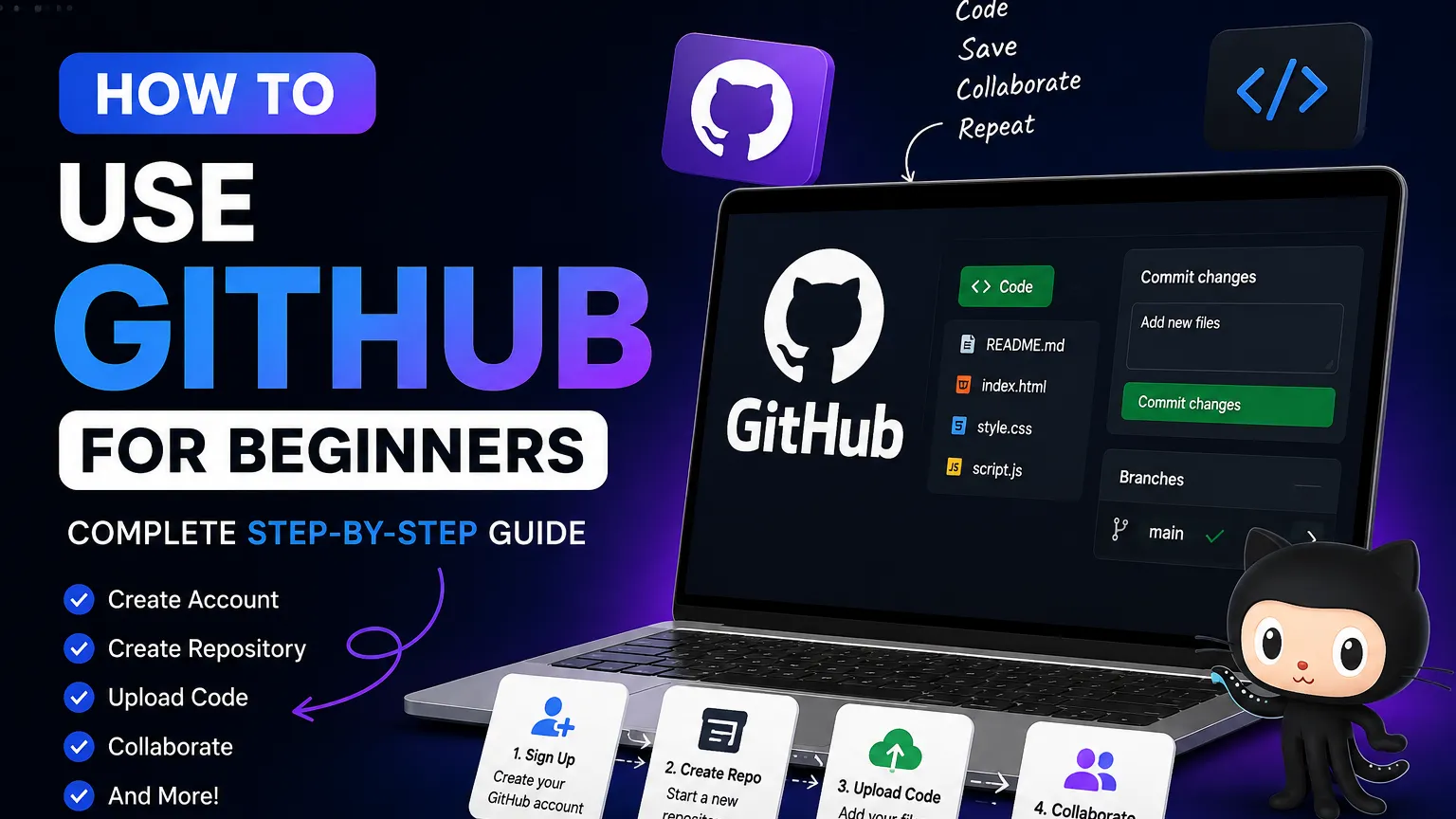

If you are new to coding, you have probably heard the words Git and GitHub many times. You may also have seen words like repository, commit, branch, push, pull, clone and pull request.
At first, GitHub can look confusing. You open a repository and see many files, folders, buttons and technical words. It can feel like you need to already be a developer before you can understand GitHub.
The Good News
You do not need to know everything. You only need to understand the basic workflow first. Once that workflow makes sense, the rest of GitHub becomes much easier.
In this guide, we will start from zero and slowly learn how to use GitHub for beginners. You will learn how Git and GitHub work together, how to create a repository, upload code, make commits, create branches, push changes, pull changes, clone projects and create pull requests.
What Is Git?
Git is a version control system. Its main job is to keep track of changes in your files.
Imagine that you are building a website. On Monday your website works perfectly. On Tuesday you change the login system. On Wednesday you change the database code. On Thursday something breaks.
Without version control, finding the old working version can be difficult. Git solves this problem by keeping a history of your changes. You can think of Git like a save system for your project. Instead of saving random copies such as:
- website-final
- website-final-new
- website-final-new-2
- website-final-working
Git keeps the project history in a much cleaner way.
What Is GitHub?
GitHub is an online platform built around Git. Developers use GitHub to store Git repositories online, share code, collaborate with other developers and manage software projects.
The easiest way to understand the difference is:
| Git | GitHub |
|---|---|
| Version control tool | Online development platform |
| Works on your computer | Stores repositories online |
| Tracks file changes | Helps share and collaborate |
| Uses commands | Provides a web interface and developer tools |
You can use Git without GitHub. But GitHub uses Git heavily for its repository and collaboration workflow.
Do You Need GitHub as a Beginner?
Yes, GitHub can be useful even when you are just starting. You do not need to wait until you become an expert. A beginner can use GitHub to save practice projects, learn version control, share code, build a developer portfolio and work with other people.
You also do not need to upload every small file you create. Start with projects that you actually want to keep and improve.
GitHub Beginner Workflow
Before learning individual commands, understand the complete workflow.
- Create a project.
- Create or connect a Git repository.
- Make changes to your files.
- Check what changed.
- Add the changes.
- Create a commit.
- Push the commit to GitHub.
- Continue working.
- Pull changes when needed.
- Use branches and pull requests for larger projects.
The basic idea is simple:
Your Computer
      ↓
     Git
      ↓
   Commit
      ↓
    Push
      ↓
   GitHub
Step 1: Create a GitHub Account
First, create a GitHub account. Use an email address that you can access because you may need to verify your account.
After creating your account, spend some time setting up your profile. If you plan to use GitHub as a developer portfolio, use a clear username and add useful information to your profile.
Step 2: Install Git
If you want to use Git from your computer, install Git for your operating system. Git works on Windows, macOS and Linux. After installing Git, open a terminal and check whether it is working.
git --versionIf Git is installed correctly, you should see the installed Git version.
Step 3: Configure Git
Before making commits, configure your name and email. These details are used as part of your Git commit information.
git config --global user.name "Your Name"
git config --global user.email "[email protected]"
You can check your configuration with:
git config --listStep 4: Create Your First GitHub Repository
A repository, often called a repo, is where your project and its Git history are stored.
From GitHub, create a new repository and give it a simple name. For example:
my-first-projectYou can choose whether the repository should be public or private. A public repository can be viewed by other people. A private repository is restricted to people you allow.
What Is a GitHub Repository?
A repository is more than just a normal folder. It contains your project files and Git history. For example, a website repository might contain:
my-website/
├── index.html
├── style.css
├── script.js
├── images/
└── README.md
The exact files depend on your project. A Python project will look different from a Laravel project, Unity project or Android project.
Step 5: Create a Local Repository
Suppose you already have a project on your computer. Open the terminal inside that project folder.
cd my-first-projectThen initialize Git:
git initStep 6: Check Your Project
One of the most useful beginner commands is:
git statusThis command tells you what is happening in your repository. It can show modified files, new files and other changes. Learn git status early. You will use it again and again.
Step 7: Add Files to Git
Git does not automatically create a commit every time you change a file. You first choose which changes you want to include.
To add one file:
git add index.htmlTo add all changes:
git add .Step 8: Create a Commit
A commit is like a saved checkpoint in your Git history.
git commit -m "Create first project"Write commit messages that explain what changed.
Good:
git commit -m "Add login page"Less useful:
git commit -m "changes"Step 9: Connect Your Local Project to GitHub
Your project can exist locally and the GitHub repository can exist remotely. You connect the two using a remote.
git remote add origin YOUR_REPOSITORY_URLYou can check the remote with:
git remote -vStep 10: Push Your Code to GitHub
Now you can send your local commit to GitHub.
git push -u origin mainRemember!
A commit saves a checkpoint locally in Git. Push sends your commits online to the remote repository on GitHub.
What Does Git Push Mean?
git push sends your local commits to a remote repository. If your local project has new commits that GitHub does not have, pushing can upload those commits.
git add .
git commit -m "Update website"
git push
What Does Git Pull Mean?
git pull is used when you want to bring changes from a remote repository into your local working copy. This becomes especially important when working with other developers.
git pullWhat Is Git Clone?
Clone means creating a local copy of a Git repository.
git clone https://github.com/example/project.gitClone vs Download ZIP
| Clone | Download ZIP |
|---|---|
| Keeps Git repository information | Downloads project files |
| Useful for development | Useful for a quick copy |
| Can pull and push changes | Does not provide the normal Git workflow |
What Is a Git Branch?
A branch gives you a separate line of work inside a repository. Imagine your main branch contains the stable version of your website. You want to add a new payment page.
Instead of changing main directly, you can create a branch:
git switch -c add-payment-pageHow to See Git Branches
git branchWhat Is a Pull Request?
A pull request, often called a PR, is a way to propose changes and ask for them to be reviewed and merged into another branch. A common workflow looks like this:
- Create a branch.
- Make changes.
- Commit your changes.
- Push the branch.
- Open a pull request.
- Review the changes.
- Merge the pull request.
GitHub Fork vs Git Clone
A fork creates a copy of a repository under your GitHub account. A clone downloads a repository to your local computer.
| Action | Where the copy is created |
|---|---|
| Fork | On GitHub |
| Clone | On your computer |
What Is a README File?
A README usually explains what your project does and how someone can use it. A good README can include: Project name, description, installation steps, requirements, usage instructions, screenshots, configuration details, and license info.
How to Use GitHub With VS Code
VS Code works very well with Git. You can open your local repository in VS Code and use the Source Control panel to see changes, stage files and create commits. You can also use the integrated terminal.
git status
git add .
git commit -m "Update project"
git push
How to Use GitHub for Coding & Personal Projects
GitHub is useful for personal projects because you can keep your code in one place and continue improving it over time. You can have separate repositories for different projects, like portfolio-website, weather-app, or nextjs-blog.
Security Warning
Do not upload passwords, API keys, private tokens or other secrets into your repository. Always use a .gitignore file.
What Is .gitignore?
The .gitignore file tells Git which files or folders should normally be ignored.
node_modules/
.env
dist/
.cache/
GitHub Command Line Basics (Cheat Sheet)
| Goal | Command |
|---|---|
| Start Git | git init |
| Check changes | git status |
| Add all files | git add . |
| Save changes | git commit -m "message" |
| Upload changes | git push |
| Download changes | git pull |
| Copy repository | git clone URL |
| View branches | git branch |
| Create branch | git switch -c branch-name |
| View history | git log |
What Should You Learn After GitHub Basics?
Once you understand the basic workflow, you can move to more advanced topics.
- Git branches, Merge, Rebase, Cherry-pick
- Git stash & Git tags
- GitHub Actions (CI/CD)
- GitHub Projects & Issues
- Pull request reviews
- GitHub security & tokens
- GitHub Pages & Copilot
Final Thoughts
GitHub is not something you need to master in one day. Start small. Learn how Git tracks changes. Learn what a repository is. Learn how to commit. Learn how to push. Learn how to pull. Then learn branches and pull requests.
The most important thing is to practice. Create a small project, put it in Git, push it to GitHub, change something, commit it and push again. Repeat that process and the basics will become natural.